This guide is for the person setting up InsightDDx for a team's first live deal or assessment. It follows the order the screens expect, and flags the choices that are easy to get wrong the first time.
Before you start
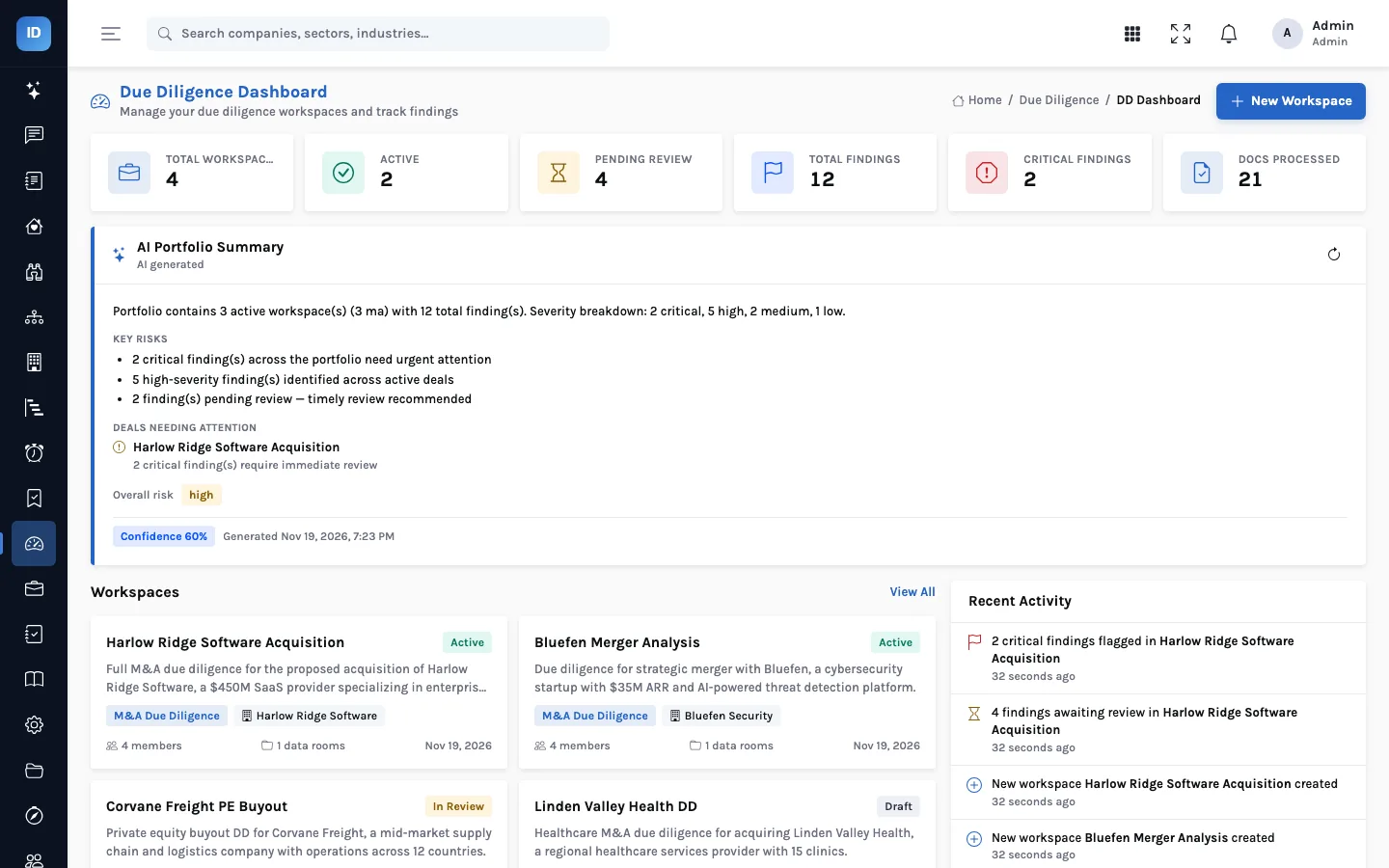
- Pick a real deal, not a test. A workspace earns its keep on a deal with a deadline. Choose one that starts in the next few weeks.
- Agree on who reviews. The review step is what makes the report defensible. Decide who approves findings in each area before the first one arrives.
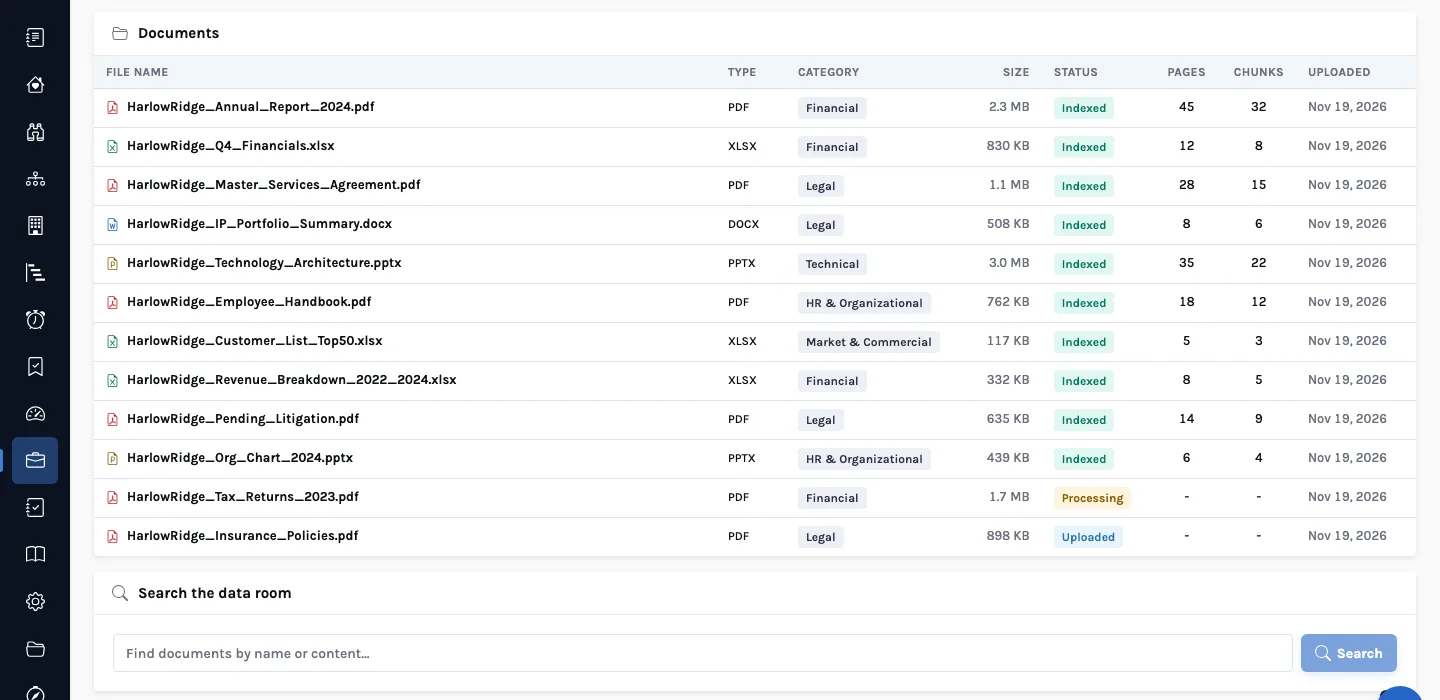
- Know your categories. Documents are filed as financial, legal, technical, HR and organizational, market and commercial, regulatory or other. Agree how you will file the awkward ones (an insurance schedule, a board pack) before the data room fills.
Setting up, step by step
- Create the workspace. Name (at least three characters), domain type, target entity, a description of scope and objectives, and the due date, usually the decision date. The domain type decides which templates are offered.
- Add the team. Each member gets a role on the workspace: owner, analyst, reviewer or viewer. Members can be added and removed from the workspace overview at any time. The role records who does what, so agree up front who approves findings.
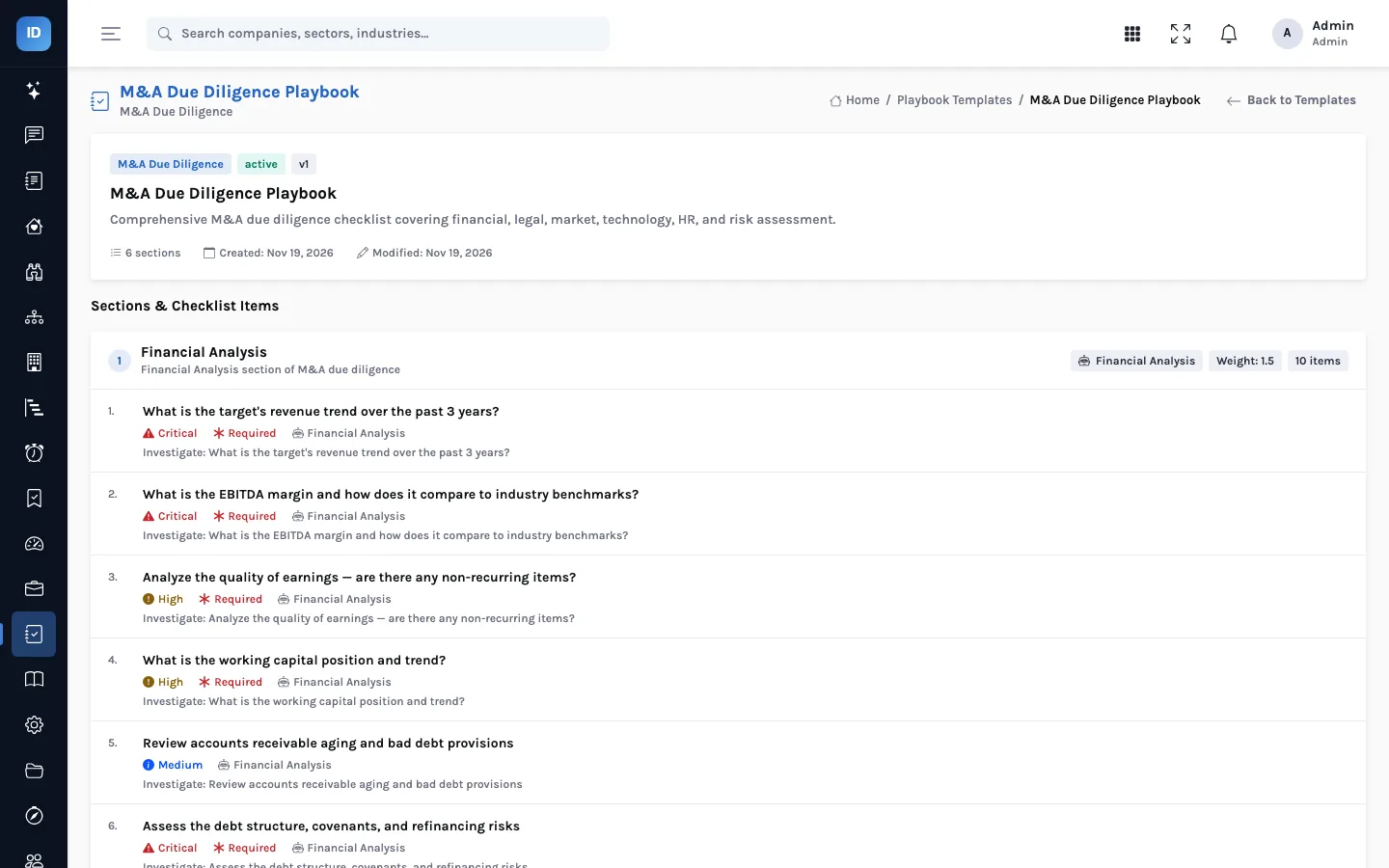
- Start the playbook. On the Playbook tab, pick the domain's template. Its sections and items are copied into the workspace, so this deal's checklist can change without touching the template.
- File the data room. Upload each document into its category. Filter by category to check coverage before the review starts.
- Work the review tabs. Each area tab shows its checklist items, the findings that belong to it and its documents. Move items on (pending, in progress, completed) as the work is done.
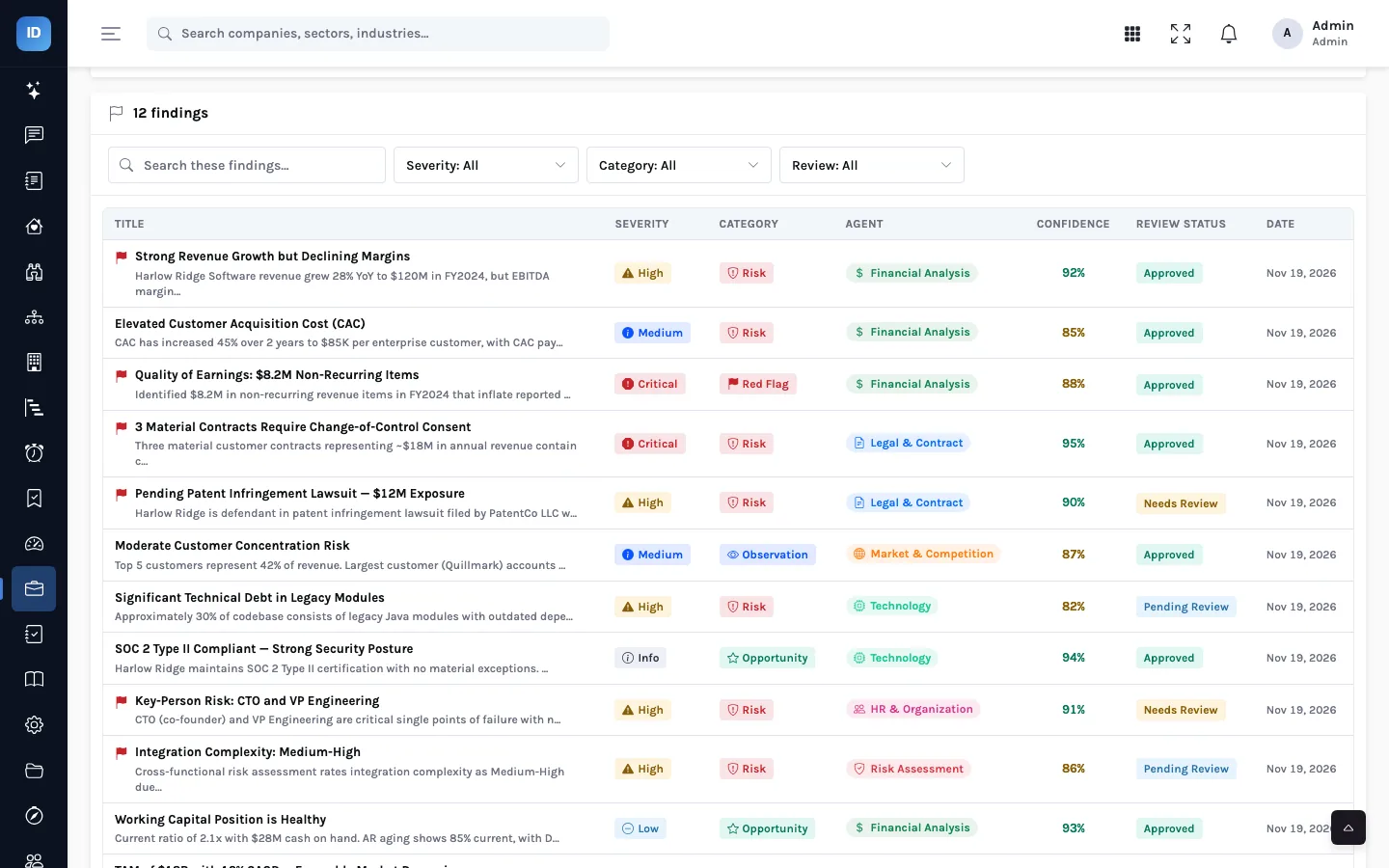
- Review findings. Approve, reject or mark needs review, always with a note. Mark key findings deliberately.
- Generate and export the report. See below.
Reports: what goes in
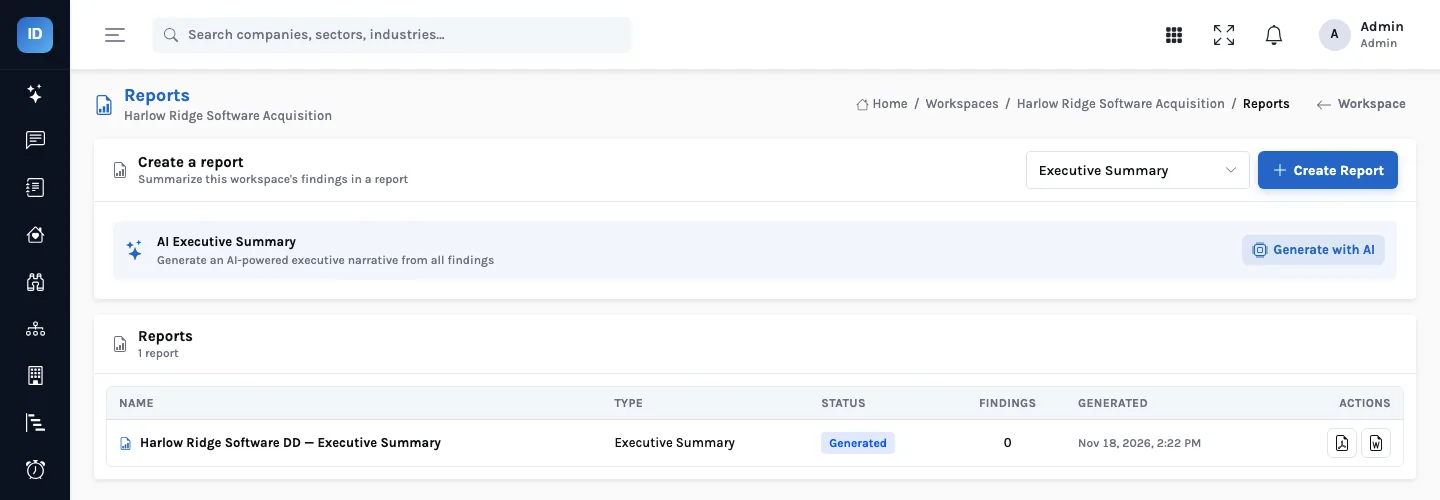
Create a report from the Reports page, choosing its type (an executive summary, for example), then generate it. InsightDDx takes the workspace's approved findings and builds three things:
- an executive summary with the counts and the key findings;
- sections by area, each with its findings;
- a risk register of every high and critical finding.
With a model configured, Generate with AI drafts the executive narrative from the findings for the deal lead to edit. Export as PDF, which opens the browser's print dialog with the formatted report, or as Word, which downloads a document Word opens. A finalized report cannot be regenerated, so finalize only when the content is settled.
Which report types you will see
The report types offered depend on the workspace's domain:
| Domain | Report types |
|---|---|
| M&A | Executive Summary · Full DD Report · Risk Assessment · Financial Summary · Legal Review |
| Vendor / third-party | Vendor Scorecard · Vendor Risk Assessment · Compliance Report · Executive Summary |
| Fund / investment | Investment Memo · Executive Summary · Risk Assessment · Market Analysis |
| Real estate | Property Assessment · Executive Summary · Environmental Report · Financial Summary |
| Healthcare | Regulatory Assessment · Executive Summary · Clinical Review · Compliance Report |
Insurance workspaces use the M&A list. Whatever the type, the content comes from the same approved findings; the type names the document for its reader.
A first-week rhythm that works
- Day 1: workspace, team, playbook. Read the playbook together and skip what does not apply.
- Days 1 to 3: file the data room. Filter by each category to check coverage against the playbook's questions, and, with a model configured, read the data room completeness card.
- Day 3 onwards: each area lead works their tab, moving items to in progress as they start them.
- Every other day: the reviewers clear the pending queue, so findings never pile up for the last week.
- End of week: the deal lead reads progress by section, not the headline percentage.
Mistakes to avoid
| Mistake | What happens | Instead |
|---|---|---|
| Everything marked key | The executive summary becomes the whole report. | Keep key findings to the handful that change the decision. |
| Approving without notes | Nobody can tell later why a claim was accepted. | One line is enough: what was checked. |
| Rejected findings deleted | The same question is raised again next week. | Reject with the reason, and leave it in the workspace. |
| Documents left as other | They do not appear on any area tab. | File under the closest category; agree conventions first. |
| Report generated too early | Pending findings are missing from it. | Check the pending count on the findings page before generating. |
Fixing things after the fact
Most first-workspace mistakes can be undone without starting again:
| You want to | Where |
|---|---|
| Move a document to another category | Open the document in the data room, pick the category, Save category. |
| Remove a document filed by mistake | The same dialog, Delete. It asks first and cannot be undone. |
| Change the due date, description or status | Edit on the workspace page. Status runs Draft, Active, In Review, Completed, Archived. |
| Add or remove a team member | The team panel on the workspace overview. |
| Change a review decision | Open the finding and choose again; the latest decision and note replace the earlier one. |
| Refresh a report after late approvals | Generate it again. This works until the report is finalized. |
Questions first-time admins ask
What files can we upload?
PDF, Word, Excel, PowerPoint, CSV, plain text, and PNG or JPEG images.
Is there a test mode?
No separate one. If you want to try the screens first, use a workspace on a past deal with a handful of documents, then archive it before the live deal starts so it drops out of the active count and the portfolio summary.
Do we need the agents to get value?
No. The workspace, playbook, review and reports work on findings however they arrive; the agents take the first pass through the data room so reviewers start from a draft.
After the deal
Before archiving the workspace, save the findings worth remembering to the knowledge base, as lessons learned. They will appear next to the checklists and guidelines the next team starts from, with tags and a count of how often each is used.
Back to the start: InsightDDx: one workspace from data room to deal report.